

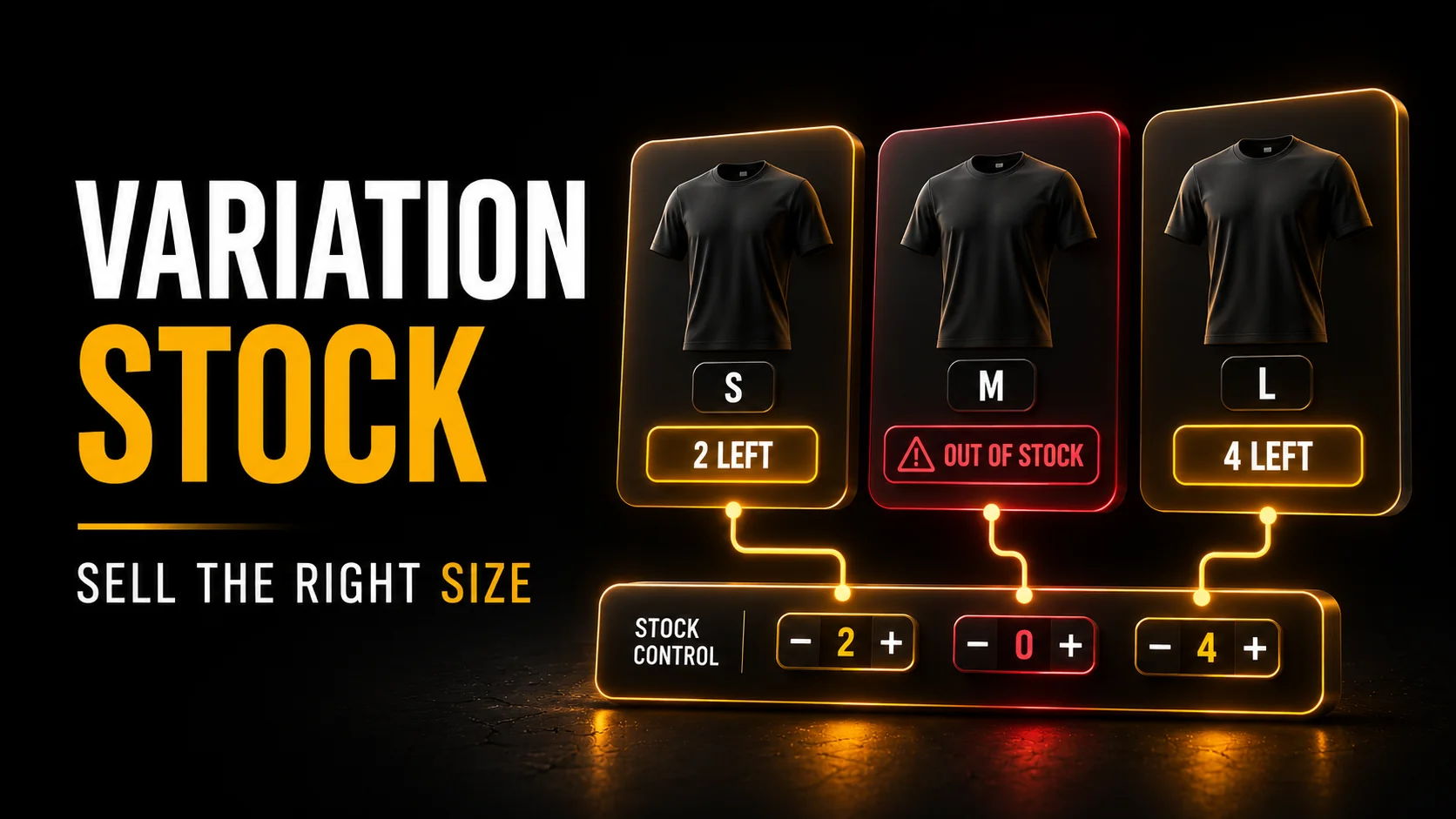
WooCommerce variation stock deserves a separate check before you promote a product with several sizes or colours. The parent product may look available while the exact option a customer chooses has sold out. Another common mistake lets several unrelated variations consume one shared quantity. Both errors turn a successful campaign into manual apologies and refunds.
Map WooCommerce Variation Stock to Physical Items
First, decide which quantities describe real inventory. Ten blue shirts and ten red shirts need separate counts if you cannot substitute one for the other. By contrast, a shared component may justify a shared limit. The WooCommerce variable-product documentation explains parent-level and variation-level stock management. Pick the model deliberately before entering numbers.
Next, compare the product identifier used by your warehouse with each variation’s identifier. A missing or reused SKU can confuse an integration even when the shop screen looks correct. Keep the mapping in a small table. Include the parent product, variation attributes, external identifier and system that owns the quantity.
Check Backorders and Unfinished Payments
Then inspect backorder settings separately from the stock count. A zero quantity does not necessarily prevent purchase when backorders remain enabled. If you accept delayed fulfilment, explain the expected wait before payment. Otherwise, disable that route and test the exact variation through checkout.
Also examine unpaid orders and reservation settings. A basket, an unpaid order and a completed purchase do not represent the same inventory state. Gateway extensions may affect the sequence. Test with your actual setup rather than assuming every payment method releases or reduces stock at the same point.
Rehearse the Last Item
For example, put one test variation at a quantity of one in staging. Run two overlapping purchase attempts and record what each customer sees. Repeat a failed payment, a cancellation and an authorised restock. Use test payment credentials. Keep staging orders away from the real warehouse and customer email systems.
Meanwhile, measure the delay between a warehouse change and the storefront update. A scheduled import can leave a selling window after another channel takes the final item. Our WooCommerce guides cover related operations, while the data archive helps frame integration checks.
Give Stock Corrections One Owner
Finally, agree where staff should correct quantities and how those corrections reach the other systems. Avoid editing the shop and warehouse independently without a reconciliation rule. Review the small set of products with repeated discrepancies first. Accurate variation counts protect both the customer promise and the team’s time after the sale.