
Every speed conversation about WordPress ends up at the same place: which plugin should I install? It is a fair question, but slightly the wrong one. WordPress caching is a stack of four different jobs, and the best plugin for you depends mostly on the server you already pay for. So let’s separate the layers first, then compare the real options honestly.
How WordPress caching actually works
Four layers do the work, and they solve different problems:
- Page cache. The big win. Instead of running PHP and hitting the database on every visit, the server stores the finished HTML and hands out copies.
- Object cache. Keeps repeated database queries in memory with Redis or Memcached. This matters most for shops, membership sites and busy admin screens.
- Browser cache. Tells returning visitors to reuse the images, CSS and fonts they already have.
- CDN or edge cache. Serves those files, and sometimes whole pages, from a location near the visitor.
Notice that only the first layer needs a plugin decision. The others depend on your host and your CDN, which is why we wrote about the whole hosting stack behind a fast site rather than one magic setting.
The plugins worth considering
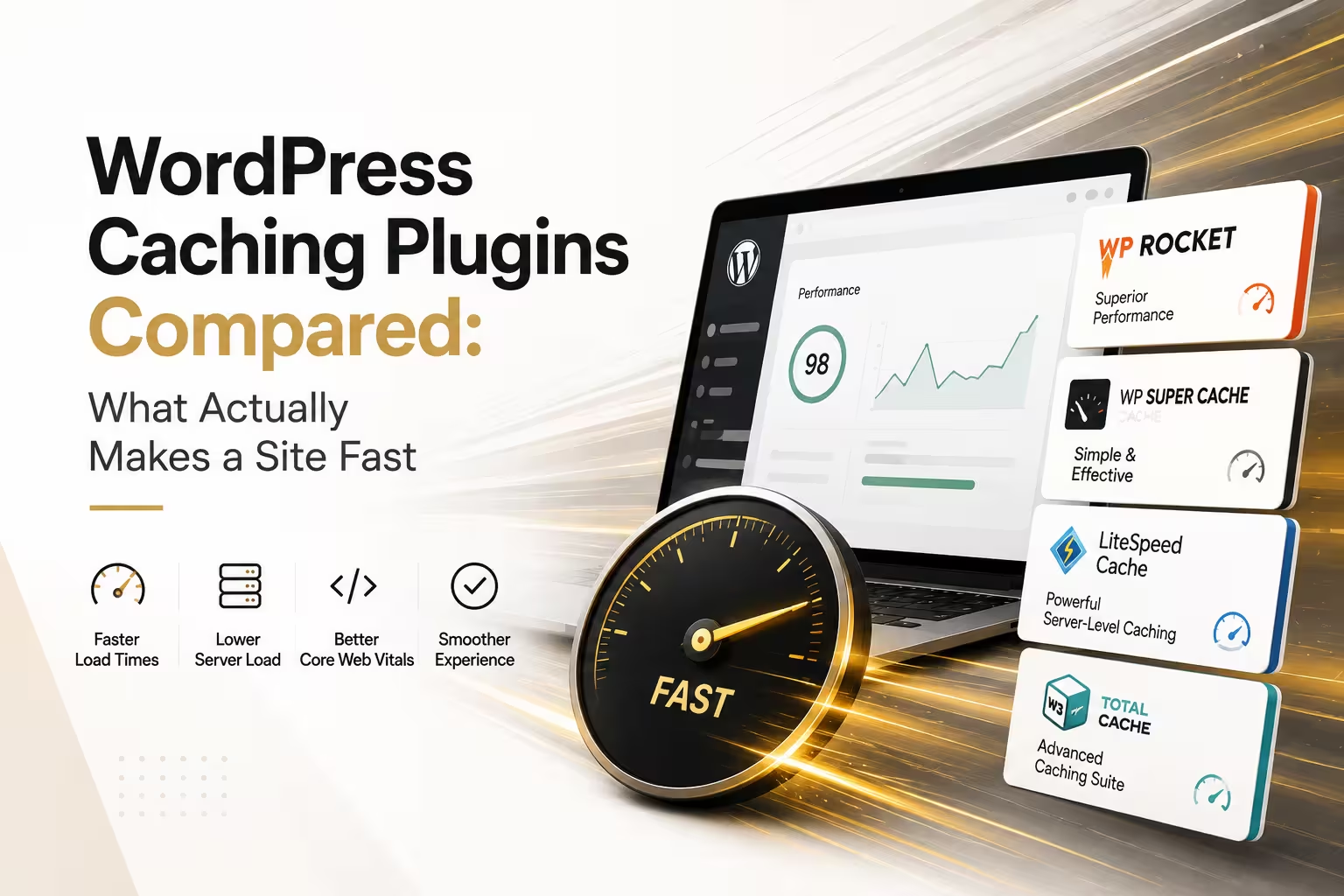
LiteSpeed Cache is the strongest free option — but only if your host runs LiteSpeed or OpenLiteSpeed. Then it caches at server level, which is faster than any PHP-based rival, and it bundles image optimisation and critical CSS. Many Greek and international shared hosts run LiteSpeed, so check before you dismiss it. The plugin page lists the server requirement plainly.
WP Rocket is the pragmatic premium pick. It works on any server, the defaults are sane, and non-technical owners can enable it without breaking things. You pay yearly, so treat it as part of the maintenance budget.
W3 Total Cache is free, powerful and genuinely fiddly. It rewards someone who enjoys settings screens. Meanwhile WP Super Cache remains a simple, reliable page cache for small brochure sites, and nothing more.
Finally, if you are on managed WordPress hosting, your host may cache at server level already. In that case a second page-cache plugin usually causes conflicts rather than speed. Ask support before installing anything.
The settings that break sites
Aggressive options look tempting on a speed report. However, three of them cause most support tickets. First, delaying JavaScript: it lifts your score, yet it can blank a page whose content depends on a script running immediately. We keep an explicit exclusion list for exactly that reason. Second, combining or minifying CSS and JavaScript can break sliders, forms and checkout. Third, caching pages that must stay personal — cart, checkout, my-account, anything behind a login — leaks one visitor’s view to another.
Therefore change one setting at a time, then test the pages that earn money. A cached homepage helps nobody if the basket forgets its contents.
Our recommendation
Match the plugin to the server: LiteSpeed Cache on LiteSpeed hosting, WP Rocket everywhere else, plus Redis for object caching if your host offers it. Then measure with real field data instead of a single lab score, as we explained in Core Web Vitals in 2026. And remember that caching hides slow code rather than fixing it — a bloated theme with thirty plugins will still crawl for logged-in users. If you want the whole stack tuned and tested, our team does this weekly.